Restarting your iPhone is one of the easiest ways to fix small issues. If your phone is slow frozen not responding or an app is not working properly a quick restart can often solve the problem.
- How to Restart iPhone Normally
- How to Force Restart iPhone
- Force Restart for iPhone 8 and Newer
- Force Restart for iPhone 7 and 7 Plus
- Force Restart for iPhone 6s and Older
- How to Restart iPhone Without Power Button
- How to Restart iPhone Without Power Button and Frozen Screen
- How to Factory Reset iPhone
- Common Reasons Why iPhone Needs Restart
- Quick Overview of Restart Methods
- Tips Before Restarting or Resetting iPhone
- Final Thoughts
- FAQs
Many people search how to restart iPhone because the steps are different depending on the model. Newer iPhones use side buttons and volume buttons while older models may still use the Home button.
This guide explains everything in a simple way. Whether you want to restart your iPhone normally force restart it or factory reset it you will find all the answers here.
How to Restart iPhone Normally
The normal restart process is simple and works for most situations.
For Newer iPhones Without Home Button
This includes most recent models like iPhone 11 iPhone 12 iPhone 14 iPhone 16 and iPhone 17.
Follow these steps
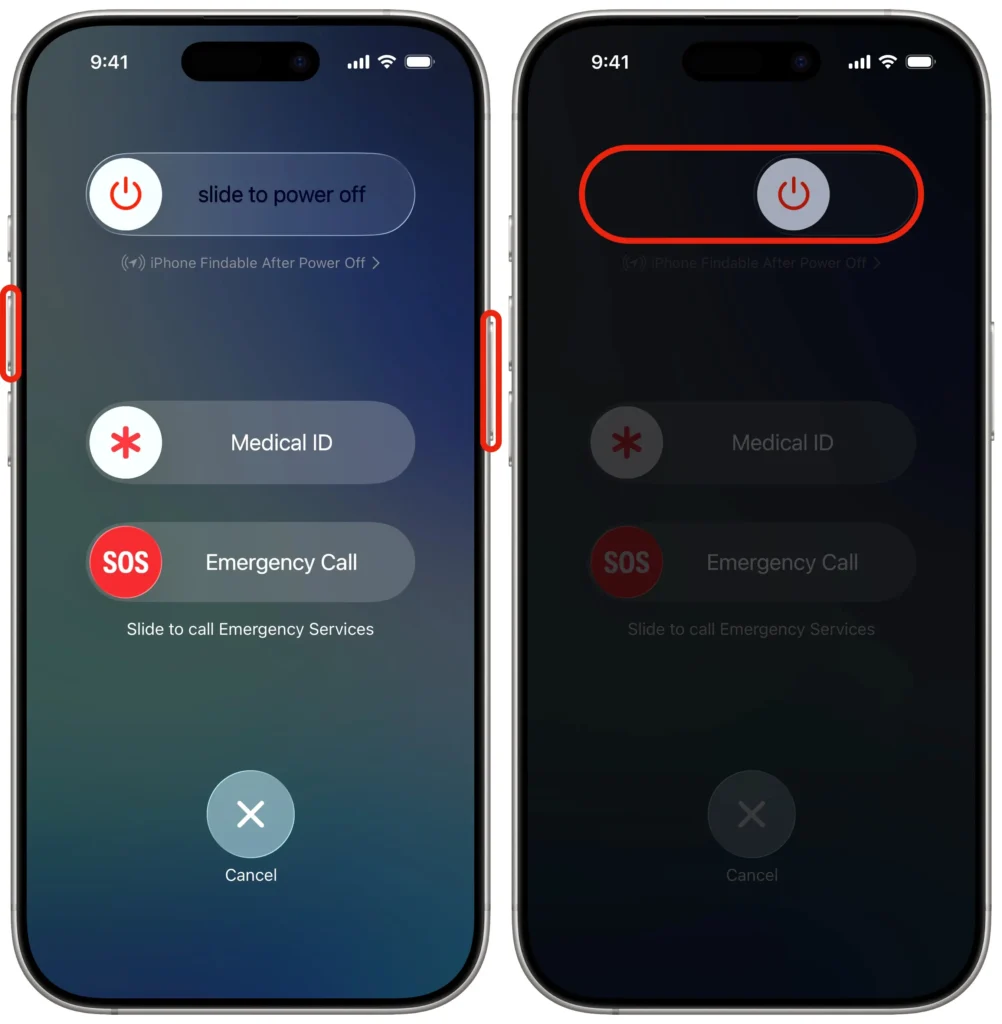
- Press and hold the Side button and either Volume button together
- Keep holding until the power off slider appears
- Drag the slider to turn off the phone
- Wait a few seconds
- Press and hold the Side button again until the Apple logo appears
This is the easiest answer for people searching how to restart iPhone 14 how to restart iPhone 16 or how to restart iPhone 17.
For Older iPhones With Home Button
- Press and hold the Power button
- Wait for the power off slider
- Drag the slider
- Turn the phone back on by pressing the Power button again
This works for older models and is still useful for users searching how to restart iPhone 11.
How to Force Restart iPhone
Sometimes your iPhone may freeze completely and normal restart will not work. In that case you need to do a force restart.
Force Restart for iPhone 8 and Newer
This works for iPhone 11 iPhone 12 iPhone 14 iPhone 16 and later models
- Press and quickly release Volume Up
- Press and quickly release Volume Down
- Press and hold the Side button
- Keep holding until the Apple logo appears
This is the best method for users searching how to force restart iPhone or how to restart iPhone when frozen.
Force Restart for iPhone 7 and 7 Plus
- Press and hold Volume Down and Power button together
- Keep holding until Apple logo appears
Force Restart for iPhone 6s and Older
- Press and hold Home button and Power button together
- Wait for Apple logo
How to Restart iPhone Without Power Button
If your Power button is broken you can still restart your iPhone using settings.
Using Settings
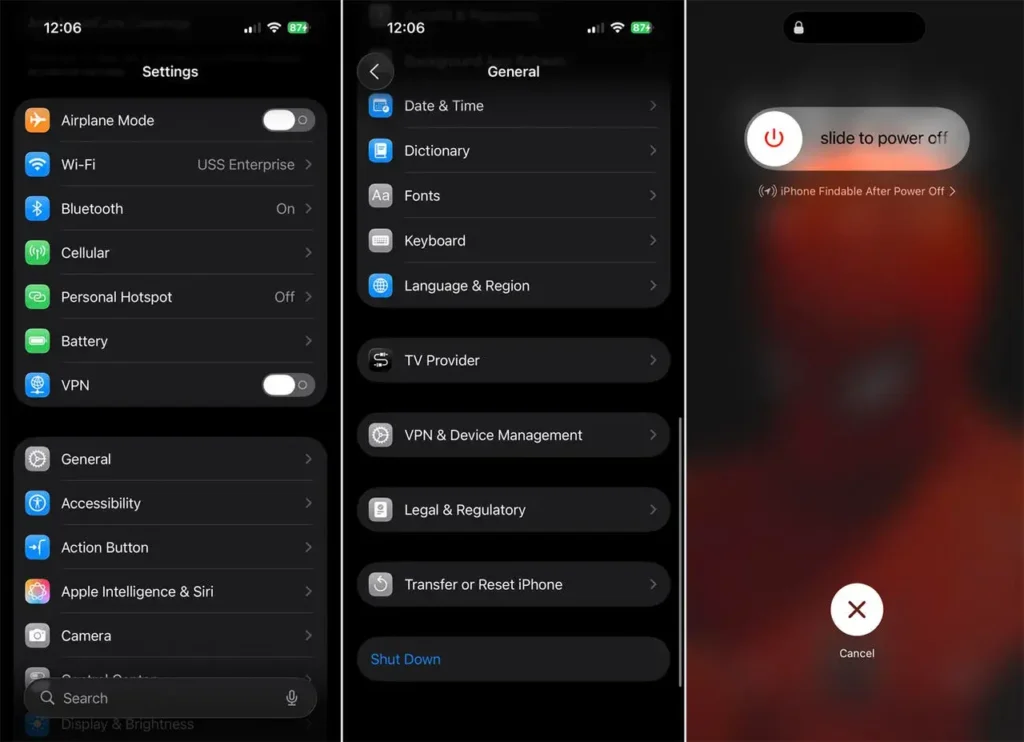
- Open Settings
- Tap General
- Scroll down and tap Shut Down
- Drag the slider
- Turn phone back on by connecting charger if needed
Using AssistiveTouch
- Open Settings
- Go to Accessibility
- Tap Touch
- Turn on AssistiveTouch
- Use the floating menu
- Tap Device then Restart
This is helpful for people searching how to restart iPhone without power button.
You might be interested in: How to Turn Off Touchscreen on Chromebook Easy and Complete Guide for Beginners
How to Restart iPhone Without Power Button and Frozen Screen
This situation is more difficult because the screen is frozen and the Power button may not work.
In this case
- Connect your iPhone to a charger
- Try force restart method for your model
- If it still does not respond connect it to a computer and use recovery mode
This is often the best solution for how to restart iPhone without power button and frozen screen.
How to Factory Reset iPhone
A factory reset removes everything from your iPhone and returns it to original settings. This should only be done if you are selling the phone or fixing major issues.
Before factory reset
- Back up important files
- Save photos and contacts
- Make sure you know your Apple ID password
Steps to Factory Reset iPhone
- Open Settings
- Tap General
- Tap Transfer or Reset iPhone
- Tap Erase All Content and Settings
- Confirm your choice
This is the correct process for people searching how to factory reset iPhone reset iPhone or factory reset iPhone.
Common Reasons Why iPhone Needs Restart
- Apps are crashing
- Phone is frozen
- Battery draining fast
- WiFi or Bluetooth not working
- Phone is slow
- Screen not responding
A restart can solve many of these small issues quickly.
Quick Overview of Restart Methods
| Method | Best For | Difficulty |
|---|---|---|
| Normal restart | Everyday issues | Easy |
| Force restart | Frozen phone | Easy |
| Settings restart | Broken Power button | Medium |
| Factory reset | Major issues or selling phone | Medium |
Tips Before Restarting or Resetting iPhone
- Save important work first
- Close open apps if possible
- Keep battery above 20 percent
- Back up photos and contacts before reset
- Use force restart only when needed
Final Thoughts
Now you know how to restart iPhone in different situations. Whether your phone is frozen slow or not responding there is always a simple method you can use.
Most of the time a normal restart is enough to solve small issues. If the phone is completely frozen then force restart is the better option. If you want to erase everything you can use factory reset.
If someone asks how to reset iPhone or how to restart iPhone you can now guide them easily. Just follow the correct steps for the model and the problem will usually be fixed.
That is all you need to get started.
FAQs
How to restart iPhone 14?
Press and hold Side button and Volume button then slide to power off
How to restart iPhone 17?
Press Side button and Volume button together then restart normally
How to restart iPhone 16?
Use Side button and Volume button to open the power slider
How to restart iPhone 12?
Hold Side and Volume buttons together until power slider appears
How to restart iPhone 11?
Press Side button and either Volume button then restart
How to restart iPhone without power button?
Use Settings or AssistiveTouch to restart the device
How to restart iPhone without power button and frozen screen?
Use force restart for your model or connect to charger and computer
How to restart iPhone when frozen?
Use the force restart button combination for your iPhone model