If you use an iPhone every day then there may be times when you want to block certain websites. Some people do this to stop distractions while studying or working. Others want to block adult websites gaming sites or social media pages for children.
- Use Screen Time to Block Websites
- How to Block Websites on Safari iPhone
- Block Websites on Google Chrome
- Table Showing Different Website Blocking Methods
- How to Block Certain Websites on iPhone
- How to Block Websites on iPhone Without Screen Time
- How to Block Websites on iPhone Permanently
- How to Block Websites on iPhone With Password
- Can You Block Websites on iPhone
- How to Block Websites on Phone
- How to Block an App Permanently on iPhone
- Helpful Tips
- Final Thoughts
- FAQs
- How to block websites on iPhone?
- How to block a website on iPhone?
- How to block website on iPhone without Screen Time?
- How to block certain websites on iPhone?
- Can you block websites on iPhone?
- How to block websites on Safari iPhone?
- How to block websites on iPhone permanently?
- How to block websites on iPhone with password?
- How to block websites on iPhone Google Chrome?
- How to block an app permanently on iPhone?
A lot of people search for how to block websites on iPhone because they want more control over what can be opened in Safari Google Chrome or other browsers.
The good thing is that iPhone already has built in settings that let you block websites without needing another app.
You can block one website block a list of websites or even allow only a few selected websites.
Use Screen Time to Block Websites
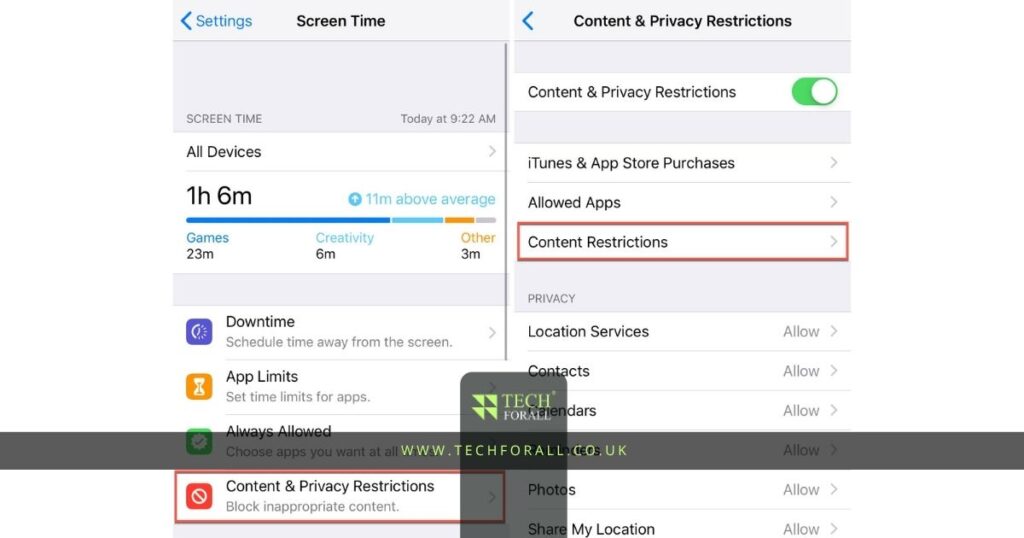
The easiest way to block websites on iPhone is by using Screen Time.
Follow these steps:
- Open Settings
- Tap Screen Time
- Tap Content and Privacy Restrictions
- Turn on Content and Privacy Restrictions
- Tap App Store Media Web and Games
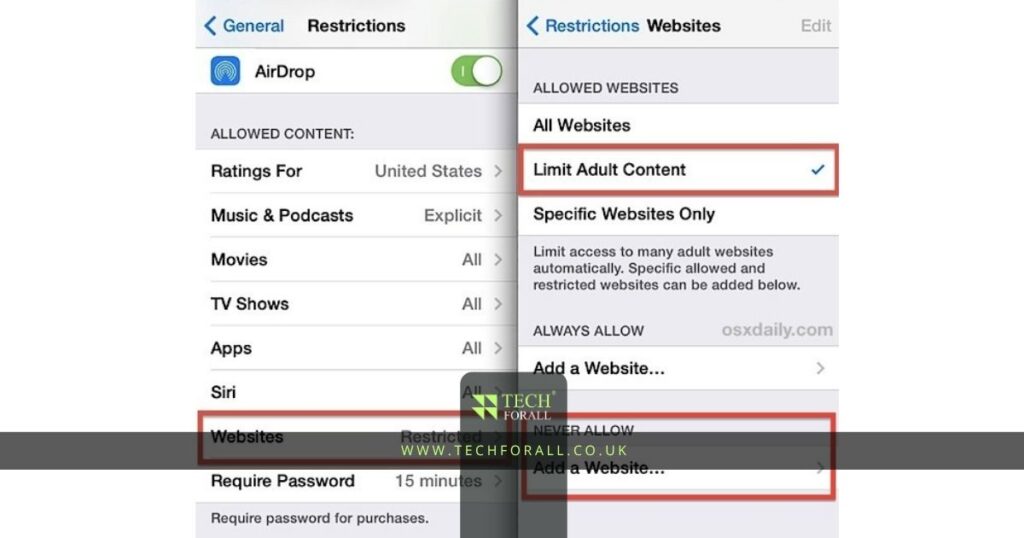
- Tap Web Content
- Choose Limit Adult Websites
- Under Never Allow tap Add Website
- Enter the website you want to block
After this the blocked website will no longer open in Safari.
This method works well if you want to block certain websites on iPhone without downloading any extra apps.
You can use this for:
- Social media websites
- Gaming websites
- Adult websites
- Shopping websites
- Video streaming websites
How to Block Websites on Safari iPhone
Most iPhone users use Safari so this is where website blocking is most useful.
When you use the Screen Time method the blocked websites are automatically blocked in Safari.
If you want even stronger control then you can choose Allowed Websites Only.
This setting blocks almost every website except the ones you manually allow.
To do this:
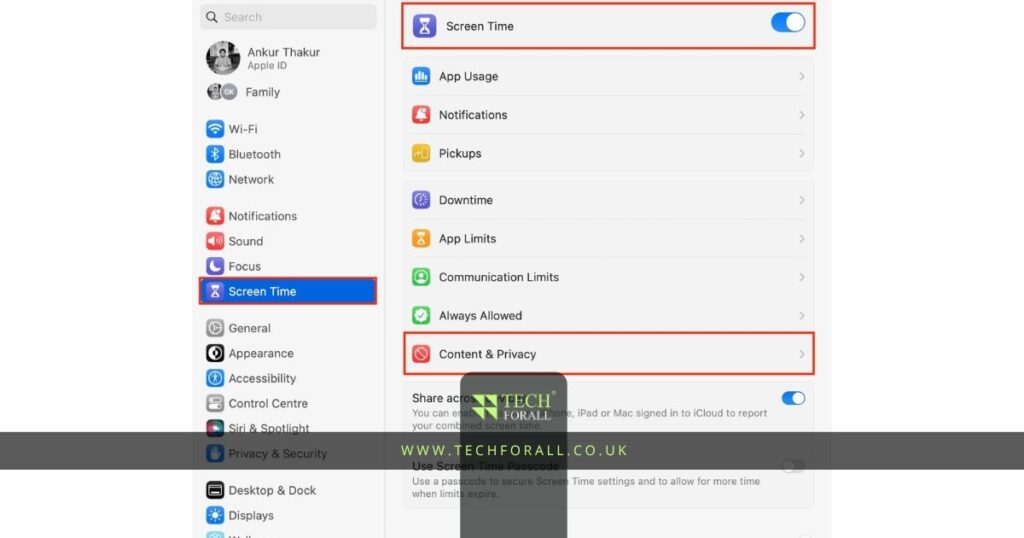
- Open Settings
- Tap Screen Time
- Tap Content Restrictions
- Tap Web Content
- Choose Allowed Websites Only
This is useful for children because they will only be able to open safe websites.
You might be interested in: How to Restart iPhone Easy and Complete Guide for Every Model
Block Websites on Google Chrome
Many people also want to know how to block websites on iPhone Google Chrome.
Chrome on iPhone follows the same Screen Time settings as Safari.
This means if you block a website through Screen Time then it is usually blocked in Chrome too.
You do not need separate settings for Chrome in most cases.
If the website still opens in Chrome then close the app fully and open it again.
Table Showing Different Website Blocking Methods
| Method | Best For | Easy to Use |
|---|---|---|
| Screen Time | Blocking specific websites | Yes |
| Allowed Websites Only | Child safety | Yes |
| Third party app | Extra control | Medium |
| Router settings | Whole family devices | Hard |
| Browser extensions | Desktop users | Easy |
How to Block Certain Websites on iPhone
If you only want to block a few websites then use the Never Allow option inside Screen Time.
This is helpful if you want to stop access to:
- Instagram web version
- YouTube website
- TikTok website
- Gaming websites
You can add as many websites as you want.
You only need to type the full website name and save it.
How to Block Websites on iPhone Without Screen Time
Some people search for how to block websites on iPhone without Screen Time.
You can do this by using:
- Third party parental control apps
- Router settings
- DNS filters
- Browser based blocking apps
Parental control apps often give more options such as time limits password protection and activity reports.
Router settings are useful if you want to block websites on every device connected to your home internet.
How to Block Websites on iPhone Permanently
If you want to know how to block websites on iPhone permanently then you should use a Screen Time passcode.
After blocking the websites:
- Go to Screen Time
- Tap Lock Screen Time Settings
- Set a password
This stops other people from removing the blocked websites.
This is especially useful for parents because children cannot change the settings without the password.
How to Block Websites on iPhone With Password
A password makes website blocking stronger.
Without a password anyone can open Settings and remove the blocked website.
After you set a Screen Time passcode only the person with the password can make changes.
This is one of the easiest ways to keep blocked websites hidden for a long time.
Can You Block Websites on iPhone
Yes you can block websites on iPhone.
Apple gives users several ways to do this.
You can block websites in Safari Google Chrome and other browsers through Screen Time settings.
You can also use parental control apps if you want more features.
How to Block Websites on Phone
The steps for Android phones are different but the idea is similar.
Most Android phones let you block websites through parental control apps browser settings or digital wellbeing features.
On iPhone the easiest method is still Screen Time because it is already built in.
How to Block an App Permanently on iPhone
Some people also want to block apps along with websites.
To block an app permanently on iPhone:
- Open Screen Time
- Tap App Limits
- Choose the app category
- Add the app
- Set the limit to one minute
- Turn on Block at End of Limit
You can also hide apps completely through Content Restrictions.
Helpful Tips
These tips can help make website blocking work better:
- Use a Screen Time password
- Block websites in both Safari and Chrome
- Test the website after blocking it
- Use Allowed Websites Only for children
- Keep your Screen Time settings updated
- Restart the browser if a blocked website still opens
Final Thoughts
Learning how to block websites on iPhone is useful if you want fewer distractions more privacy or better control for children.
The easiest method is Screen Time because it is free simple and already built into the iPhone.
You can block one website block many websites or even allow only safe websites.
Once you add a password the settings become harder to remove and your blocked websites stay protected.
FAQs
How to block websites on iPhone?
Open Screen Time go to Web Content and add the website under Never Allow.
How to block a website on iPhone?
You can block a website by using Screen Time settings in the iPhone Settings app.
How to block website on iPhone without Screen Time?
You can use parental control apps DNS filters or router settings.
How to block certain websites on iPhone?
Use the Never Allow option and add the websites you want to block.
Can you block websites on iPhone?
Yes iPhone allows website blocking through Screen Time and parental control apps.
How to block websites on Safari iPhone?
Use Screen Time and the blocked websites will not open in Safari.
How to block websites on iPhone permanently?
Block the websites and set a Screen Time password.
How to block websites on iPhone with password?
After blocking the website set a Screen Time passcode to stop changes.
How to block websites on iPhone Google Chrome?
Blocked websites usually stay blocked in Chrome when you use Screen Time.
How to block an app permanently on iPhone?
Use App Limits in Screen Time and turn on Block at End of Limit.