Large videos can take up a lot of space on your iPhone. They can also be difficult to send through WhatsApp email Instagram or other apps.
That is why many people search for how to compress a video on iPhone. Compressing a video means making the file size smaller. A smaller video is easier to send upload and save.
The good thing is that you do not need special editing skills to do this. You can compress a video on iPhone by lowering the video quality trimming the length or using an app.
Lower the Video Recording Quality
- One of the easiest ways to make videos smaller is to change the recording settings before you make the video.
- If you record videos in 4K then the file size will be much larger.
- If you record in 1080p or 720p then the file size will be smaller.
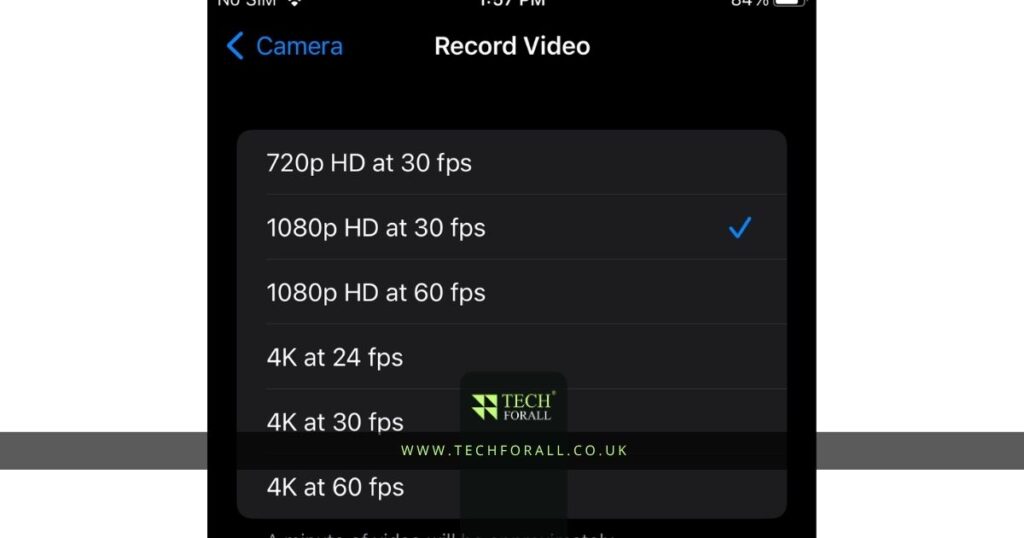
On iPhone you can change the video quality here:
- Settings > Camera > Record Video
After opening this section you will see different quality options.
For example:
- 720p HD at 30 fps
- 1080p HD at 30 fps
- 1080p HD at 60 fps
- 4K at 30 fps
If you want smaller video files then 1080p at 30 fps is usually a good choice.
It still looks clear but does not take up as much space.
Trim the Video Before Sending
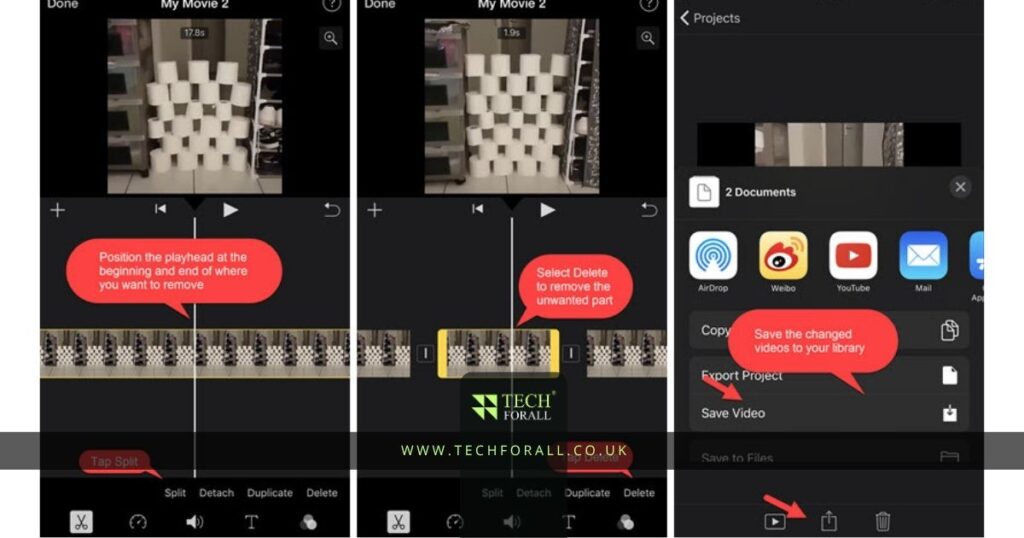
Another easy way to compress video on iPhone is to trim the video. If your video is too long then cutting out extra parts can make the file smaller.
You can do this directly in the Photos app. Open the video then tap Edit. You will see a slider at the bottom of the screen. Move the ends of the slider to cut away parts you do not need.
Then tap Done and save the shorter version. This is helpful if you only need part of the video.
Use Mail Drop or Cloud Sharing
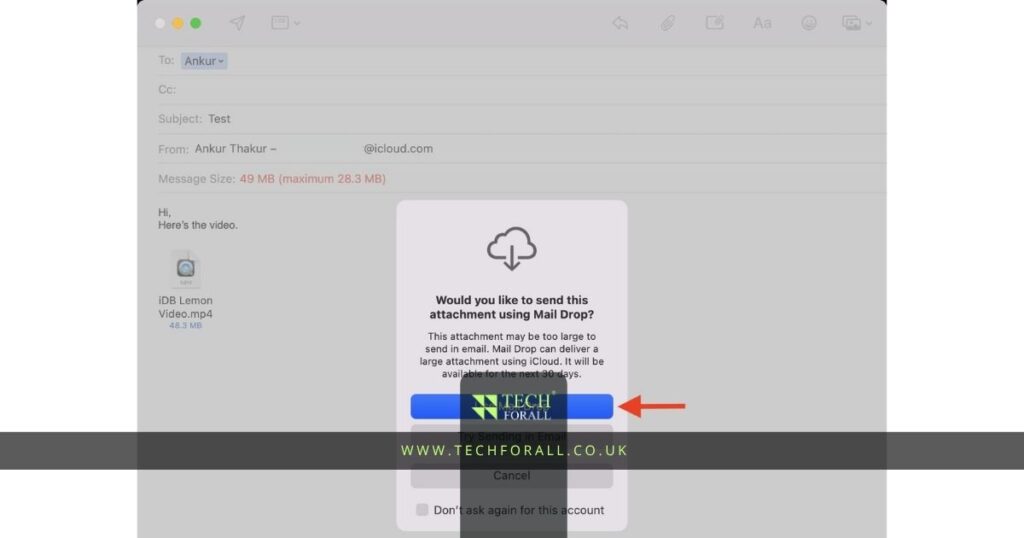
Sometimes you do not actually need to compress the video. Instead you can send it through cloud sharing.
For example if the file is too large for email you can use Mail Drop on iPhone. Mail Drop uploads the video and sends a download link instead of sending the whole file directly.
You can also use:
- iCloud Drive
- Google Drive
- Dropbox
- OneDrive
This is useful when you want to keep the original quality.
You might be interested in: How to Disable VPN on iPhone and iPad Easily
Best Apps to Compress Video on iPhone
There are also apps that can reduce video size automatically. These apps are useful if you often send videos or upload them online.
Compress Videos and Resize Video
- Compress Videos and Resize Video is one of the most popular apps for reducing video size on iPhone.
- You can choose how much you want to reduce the file size.
- The app also lets you choose the video resolution and quality.
Pricing
The app has a free version. Some extra features need a paid plan.
Rating
This app is popular because it is simple and easy to use.
Video Compress
- Video Compress is another app that helps make large videos smaller.
- It lets you preview the file size before saving.
- This is useful if you want to know how much space you will save.
Pricing
Video Compress has a free version with ads and a paid version without ads.
Rating
Many people like this app because it is quick and does not take long to compress videos.
iMovie
- Many people do not know that iMovie can also help reduce video size.
- You can open your video in iMovie and export it in a lower resolution.
- For example you can export a 4K video as 1080p.
- That will make the file smaller.
Pricing
iMovie is free on iPhone.
Rating
iMovie is a good option if you already use it for editing.
Table Showing Different Ways to Compress Video
| Method | Best For | Cost |
|---|---|---|
| Lower video quality | Smaller file size before recording | Free |
| Trim the video | Removing extra parts | Free |
| Mail Drop | Sending large videos | Free |
| Compress Videos app | Fast video compression | Free and paid |
| Video Compress app | Smaller videos with preview | Free and paid |
| iMovie | Exporting lower quality videos | Free |
How to Compress a File on iPhone
Many people also search for how to compress a file on iPhone. If you want to compress photos videos documents or folders then you can use the Files app.
Open the Files app then find the file or folder. Press and hold it then tap Compress. Your iPhone will create a ZIP file. This is useful if you want to send many files together.
Final Thoughts
Learning how to compress a video on iPhone can save storage and make it easier to send videos. You can lower the recording quality trim the video or use a compression app.
If you do not want to lose quality then cloud sharing can also help. The best option depends on how small you want the file to be and how much quality you want to keep.
FAQs
How to compress a video on iPhone free?
You can use free apps like iMovie Video Compress or Compress Videos and Resize Video to make videos smaller.
How to compress a video on iPhone to send via email?
You can lower the video quality trim the video or use Mail Drop if the file is too large for email.
What is a video compressor?
A video compressor is a tool or app that reduces the file size of a video.
How to compress a video on Android?
You can use apps like Video Compressor Panda Video Compress or lower the recording quality in camera settings.
How to compress a video on iPhone iMovie?
Open the video in iMovie then export it in a lower resolution like 720p or 1080p.
How to compress 1GB video to 10MB?
You need to lower the resolution reduce the frame rate and use strong compression settings to make the file much smaller.
What is a free video compressor app?
Some free video compressor apps include Video Compress Compress Videos and Resize Video and Panda Video Compress.
How to compress 2GB video online?
You can use online tools like Clideo VEED or FreeConvert to upload the video and reduce the file size.