A VPN can help protect your internet connection but sometimes you may want to turn it off.
Some people disable VPN because certain apps stop working. Others turn it off because websites load slowly or because they want to use a local network.
Many people search for how to disable VPN when their iPhone or iPad keeps reconnecting to a VPN by itself.
The good thing is that turning off a VPN is simple once you know where the setting is.
Turn Off VPN in the App
If you use a VPN app like NordVPN Surfshark or any other VPN service then the easiest way to turn it off is inside the app.
Most VPN apps have a simple button on the main screen. It may say Disconnect Off Pause or Stop.
To turn off the VPN inside the app:
- Open the VPN app you normally use on your iPhone or iPad
- Look for a button that says Disconnect Off Pause or something similar
- Tap that button and wait a few seconds
- Once the VPN disconnects your internet will start working normally again without using the VPN server
This is useful if you only want to turn off the VPN for a short time.
For example some websites banking apps streaming apps and games may work better without a VPN.
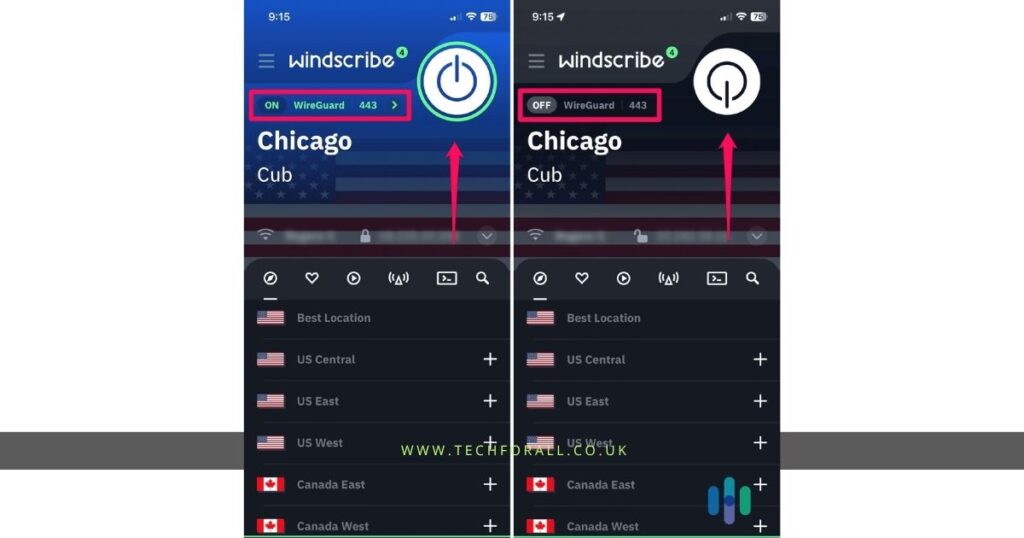
How to Disable VPN on iPhone
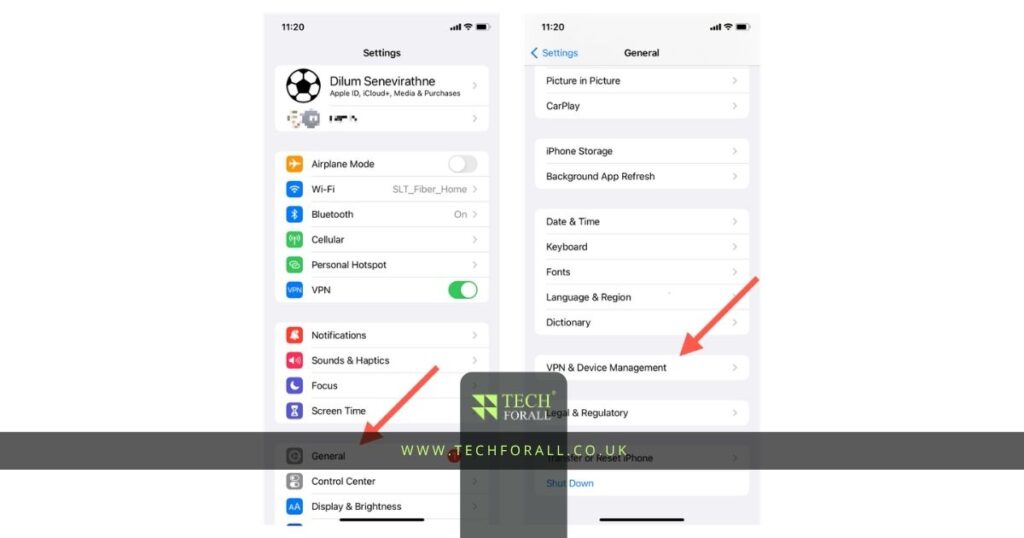
If the VPN app does not disconnect properly or if the VPN keeps turning back on then you can turn it off from Settings.
On iPhone you can find the VPN setting here:
- Settings > General > VPN and Device Management > VPN
After opening the VPN menu:
- Find the VPN connection that is turned on
- Tap the switch next to it to turn it off
- Wait a few seconds for the connection to disconnect
- Check the top of your screen to make sure the VPN icon is gone
A lot of people search for how to disable VPN on iPhone because their phone keeps reconnecting to the VPN.
If that happens then you may need to turn off Connect on Demand too.

How to Turn Off VPN on iPad
The steps are almost the same on iPad.
You can find the VPN setting here:
- Settings > General > VPN and Device Management > VPN
Then:
- Tap the VPN switch to turn it off
- Wait for the VPN connection to disconnect
- Check that the VPN icon is no longer showing
Some iPads may only show VPN instead of VPN and Device Management.
If you do not see the full option then tap VPN directly.
This method works for people searching for how to turn off VPN on iPad or turn off VPN on iPad.
You might be interested in: How to Block Websites on iPhone Without Mistakes
Stop VPN from Reconnecting
Sometimes you turn the VPN off but it keeps connecting again after a few minutes.
This usually happens because a setting called Connect on Demand is turned on.
To stop this setting:
- Open Settings on your iPhone or iPad
- Go to General
- Tap VPN and Device Management
- Tap VPN
- Tap the small i button next to the VPN name
- Turn off Connect on Demand
After you turn this setting off the VPN should stop reconnecting by itself.
This can be helpful if you keep turning the VPN off but it keeps coming back.
How to Remove VPN from iPhone
If you no longer use the VPN then you can remove it completely from your phone.
To remove VPN from iPhone:
- Open Settings
- Tap General
- Tap VPN and Device Management
- Tap VPN
- Tap the small i button next to the VPN name
- Tap Delete VPN
You can also delete the VPN app from your Home Screen.
- Press and hold the app icon
- Tap Remove App
- Confirm that you want to delete it
Once the VPN profile and app are deleted it should stop showing on your phone.
Why Some VPNs Block Internet After Turning Off
Some VPN apps have something called a kill switch.
This feature blocks your internet connection when the VPN disconnects.
It is meant to keep your data private but it can confuse people because the internet may stop working after the VPN turns off.
If this happens:
- Open the VPN app
- Look for Kill Switch settings
- Turn the feature off
- Disconnect the VPN again
After that your internet should work normally.
Table Showing VPN Options
| Option | What It Does |
|---|---|
| Disconnect in app | Turns VPN off for a short time |
| Turn off in Settings | Stops VPN connection from phone settings |
| Turn off Connect on Demand | Stops VPN from reconnecting |
| Delete VPN profile | Removes VPN settings completely |
| Delete VPN app | Removes the app from your device |
When You May Want to Turn Off VPN
There are many reasons why people disable VPN.
Some common reasons include:
- Slow internet speed
- Problems with streaming apps
- Banking apps not opening
- Local websites not working
- Trouble with school or office WiFi
- VPN reconnecting too often
Turning off the VPN for a short time can sometimes fix these problems.
Final Thoughts
Turning off a VPN is easy once you know where the setting is. Some people only want to disconnect for a short time while others want to remove the VPN completely.
You can turn it off inside the app or from the settings on your iPhone or iPad. If the VPN keeps turning back on then turning off Connect on Demand usually fixes the problem. If you no longer use the VPN at all then deleting the VPN profile and the app is usually the best option.
FAQs
How to disable VPN on Android?
Open Settings then go to Network Internet VPN. Find the VPN connection and turn it off.
How to disable VPN on iPhone?
Open Settings then go to General VPN and Device Management VPN. Turn the VPN switch off.
How to disable VPN on Windows 10?
Open Settings then go to Network and Internet VPN. Select the VPN connection and click Disconnect.
How to disable VPN on laptop?
Open your VPN app and tap Disconnect or turn the VPN off from your network settings.
How to disable VPN on Chrome Android?
Open the VPN app you use on Android and disconnect it. Chrome does not have its own VPN setting on most phones.
How to disable VPN on Samsung phone?
Open Settings then go to Connections More Connection Settings VPN. Select the VPN and turn it off.
How to disable VPN on Mac?
Open System Settings then go to VPN. Select the VPN connection and click Disconnect.
How to disable VPN on TV?
Open the VPN app on your smart TV and disconnect it. If the VPN is connected through the router then you may need to turn it off from the router settings.