If your MacBook feels slow then you are not alone. Over time MacBooks can become slower because of too many apps full storage old software or too many background tasks.
A slow MacBook can make simple things feel frustrating. Apps take longer to open Safari becomes slow videos lag and even typing may feel delayed.
The good thing is that you do not always need to buy a new MacBook. In many cases you can make your Mac faster with a few simple changes.
These tips can help if you want to know how to speed up MacBook Pro how to speed up old MacBook or how to speed MacBook up in general.
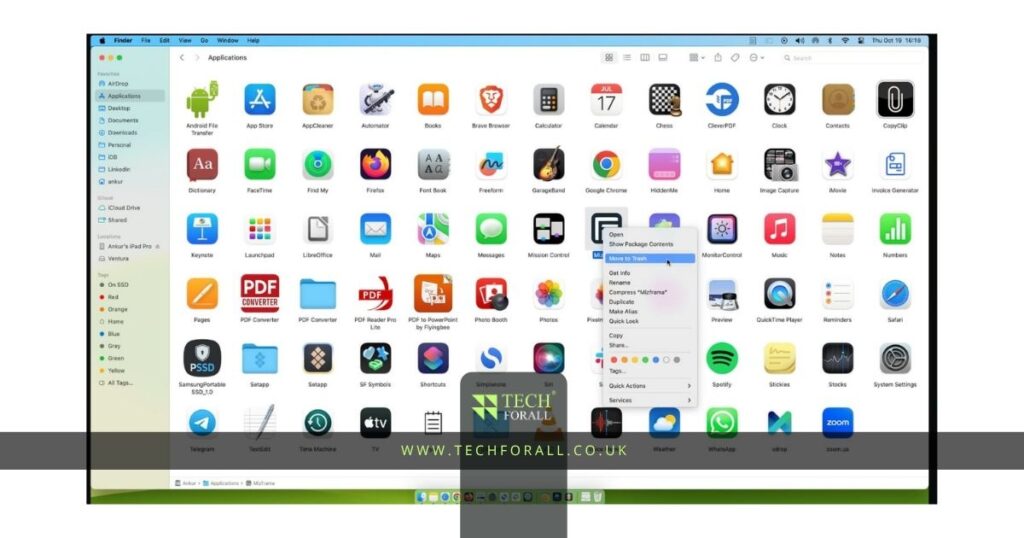
Remove Apps You Do Not Need
Many people keep apps installed that they no longer use.
Old apps can take up storage run in the background and slow down your MacBook.
Go through your Applications folder and remove anything you do not need.
You can check for apps you never use such as:
- Old games
- Editing apps
- Unused browser apps
- Duplicate software
- Large programs you no longer need
The more free storage you have the better your MacBook usually performs.
Free Up Storage Space
Storage space is one of the biggest reasons MacBooks become slow.
If your storage is almost full then macOS may struggle to run smoothly.
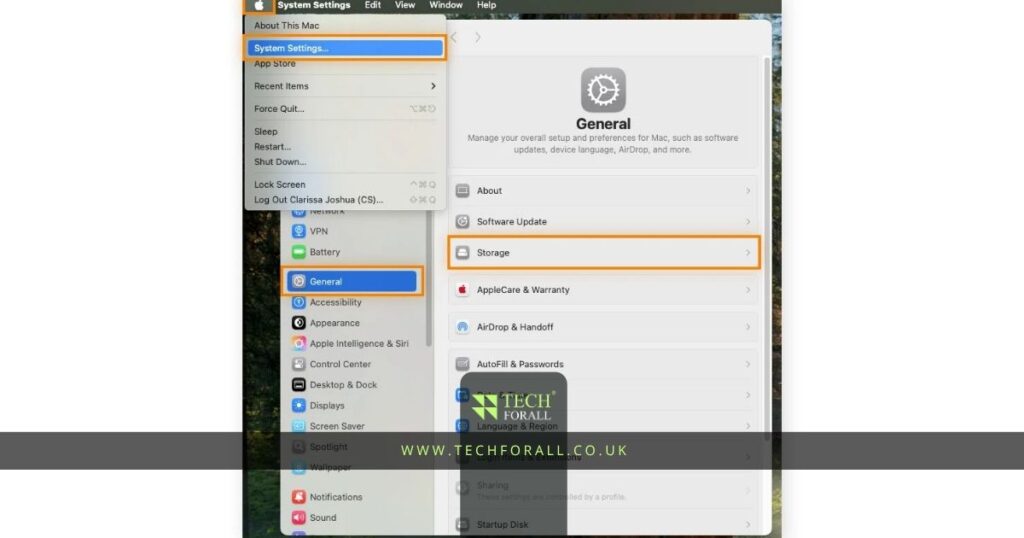
To check storage:
- Click the Apple logo
- Open System Settings
- Go to General
- Click Storage
You may see large files such as:
- Old downloads
- Duplicate photos
- Large videos
- Unused apps
- Old backups
Try to keep at least 15 to 20 percent of your storage free.
If you have an old MacBook with a small SSD then this is even more important.
You might be interested in: How to Make a Sticker on iPhone for Better Chats
Stop Too Many Startup Apps
Some apps open automatically every time you turn on your MacBook.
Too many startup apps can make your Mac feel slow as soon as it starts.
To remove startup apps:
- Open System Settings
- Click General
- Open Login Items
- Remove apps you do not want starting automatically
Common startup apps include:
- Spotify
- Discord
- Dropbox
- Zoom
- Steam
Keeping only important apps in startup can improve boot speed.
Keep macOS Updated
Apple often releases updates that improve speed security and battery life.
If you are using an older version of macOS then your MacBook may not perform as well.
To update your MacBook:
- Open System Settings
- Click General
- Click Software Update
- Install any available updates
Updates can also fix bugs that slow down your MacBook.
Restart Your Mac More Often
A lot of people leave their MacBook running for days or weeks without restarting it.
Restarting clears temporary memory background tasks and small bugs.
If your Mac feels slow try restarting it first.
Sometimes this simple step can make a big difference.
Use Activity Monitor
Activity Monitor helps you see which apps are using the most memory CPU and battery.
To open it:
- Open Spotlight Search
- Type Activity Monitor
- Press Enter
Look for apps using too much CPU or memory.
You may find that one app is causing most of the slowdown.
Common heavy apps include:
- Google Chrome
- Video editing software
- Games
- Multiple browser tabs
- File syncing apps
If needed close those apps when you are not using them.
Table Showing Common Causes of Slow MacBooks
| Problem | What Happens | Simple Fix |
|---|---|---|
| Full storage | Mac becomes slow | Delete files and apps |
| Too many startup apps | Slow startup time | Remove login items |
| Old software | Bugs and lag | Update macOS |
| Too many browser tabs | High memory use | Close extra tabs |
| Old MacBook battery | Lower performance | Replace battery |
| Too many background apps | Slow system speed | Close unused apps |
How to Speed Up Old MacBook
If you have an older MacBook then you may need a few extra steps.
Older MacBooks often have less memory slower processors and smaller storage.
To speed up old MacBook models:
- Use fewer browser tabs
- Remove extra apps
- Keep more free storage
- Restart more often
- Use Safari instead of Chrome
- Replace an old battery if needed
If your MacBook is very old then upgrading the SSD or RAM can also help if your model allows upgrades.
How to Speed Up MacBook Pro
MacBook Pro models are usually faster than MacBook Air models but they can still become slow.
If you use editing apps games or heavy software then your MacBook Pro may slow down over time.
To speed up MacBook Pro:
- Close heavy apps when not needed
- Remove browser extensions you do not use
- Keep your desktop clean
- Delete old project files
- Update creative apps like Photoshop and Final Cut
These small changes can improve speed and reduce lag.
Extra Tips
These tips can also help:
- Use Safari instead of Chrome
- Empty the Trash regularly
- Remove browser extensions
- Keep fewer files on the desktop
- Avoid too many widgets
- Turn off visual effects if needed
Even small changes can help your MacBook feel faster.
Final Thoughts
Learning how to speed up MacBook is useful because many slowdowns can be fixed without buying a new device. Most of the time the problem comes from full storage too many apps old software or too many background tasks.
If you clean up your storage update macOS and remove extra apps your MacBook can feel much faster. Even older MacBooks can still work well if you take care of them properly.
FAQs
How do I make my Mac run faster?
You can make your Mac run faster by deleting old files removing unused apps updating macOS and stopping extra startup apps.
How to increase speed in MacBook?
Free up storage remove background apps restart your Mac and keep the software updated.
How to speed up old MacBook?
Use fewer apps remove old files keep storage free and consider replacing the battery.
How to speed up MacBook Pro?
Close heavy apps remove browser extensions and keep creative software updated.
What is Ctrl plus F4 on a Mac?
Ctrl plus F4 moves the focus between open windows and app areas on a Mac.
Is a 7 year old Mac too old?
Not always. A 7 year old Mac can still work well for browsing emails videos and office work if it is maintained properly.