Taking a screenshot on iPad is something you will use again and again. It helps you save important messages capture images keep notes or share anything quickly.
If you are searching how to screenshot on iPad or how to take a screenshot on an iPad the process is actually very simple. Once you learn it you can do it in seconds without thinking.
This guide explains everything in a clear way so you can understand all methods whether your iPad has a home button or not.
How to Screenshot on iPad Step by Step
The method depends on your iPad model. Apple has two types one with a home button and one without it.
For iPad Without Home Button
This is the newer model
Follow these steps
- Press the Top button and Volume Up button at the same time
- Quickly release both buttons
- The screen will flash and screenshot will be captured
For iPad With Home Button
This is the older model
- Press the Top button and Home button together
- Release quickly
- Screenshot will be taken instantly
This method answers most searches like screenshot ipad and how to screen shot on ipad.
Different Ways to Take Screenshot on iPad
Sometimes buttons are not comfortable so here are other ways you can use
Using AssistiveTouch
If your buttons are not working or you want an easier option
Steps
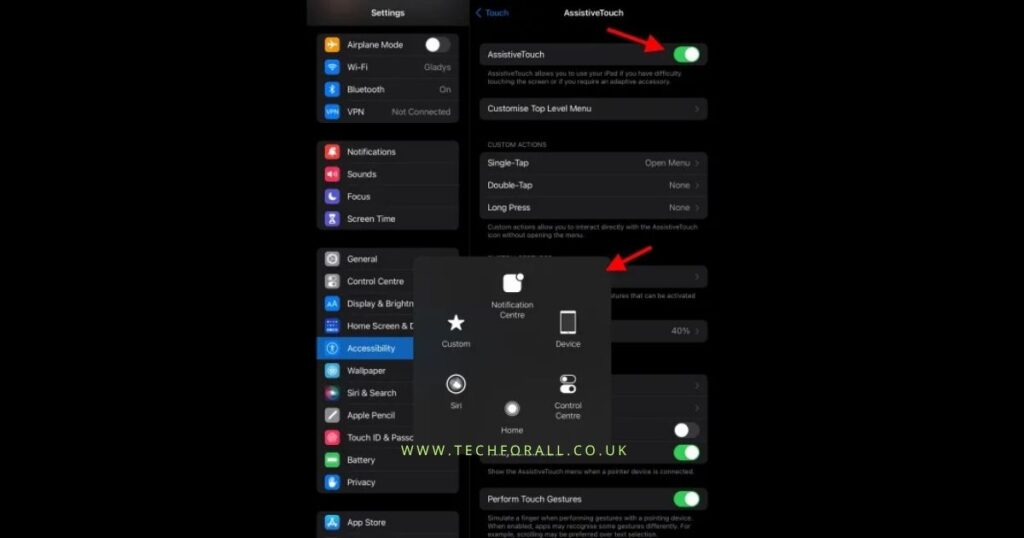
- Go to Settings
- Tap Accessibility
- Turn on AssistiveTouch
- Tap the floating button
- Select Device then More
- Tap Screenshot
Now you can take screenshots without using physical buttons
This is helpful for people searching how to screenshot without home button
Using Apple Pencil
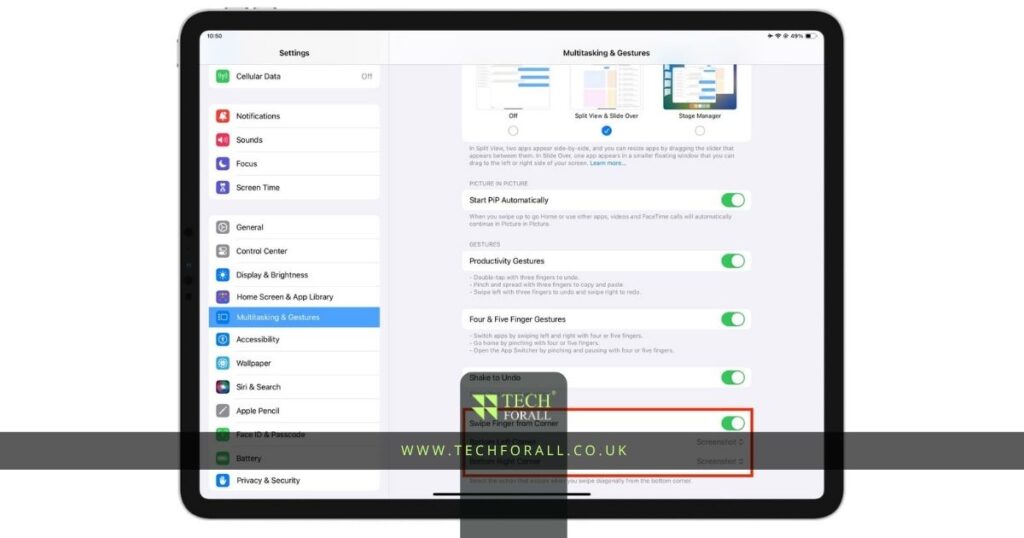
If you use Apple Pencil this method is very fast
- Swipe up from the bottom corner of the screen
- Screenshot will be captured instantly
This works great for quick notes and editing
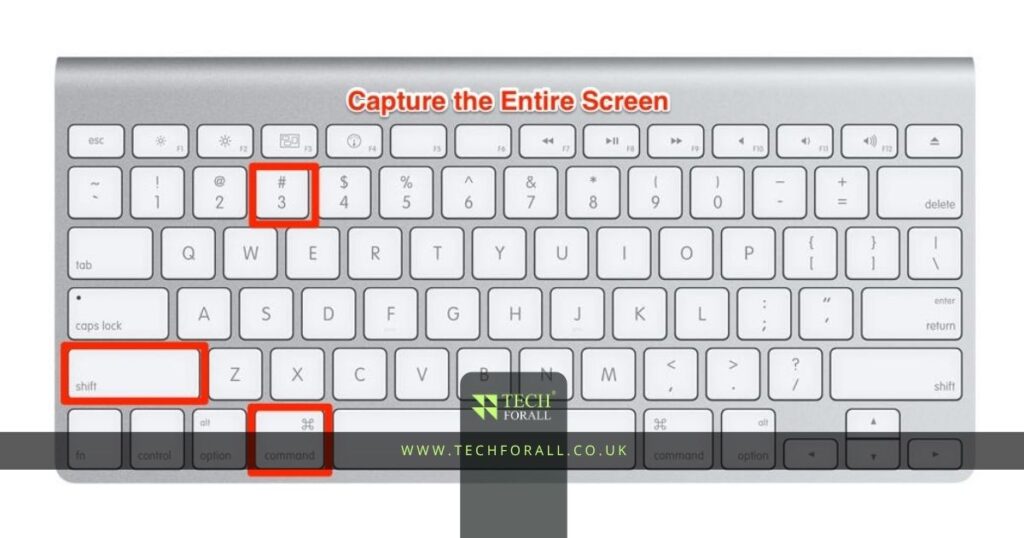
Using Keyboard
If you are using an external keyboard
- Press Command Shift 3
This takes a screenshot directly
You might be interested in: Complete Guide: How to Delete Amazon Account Safely
What Happens After You Take a Screenshot
After taking a screenshot
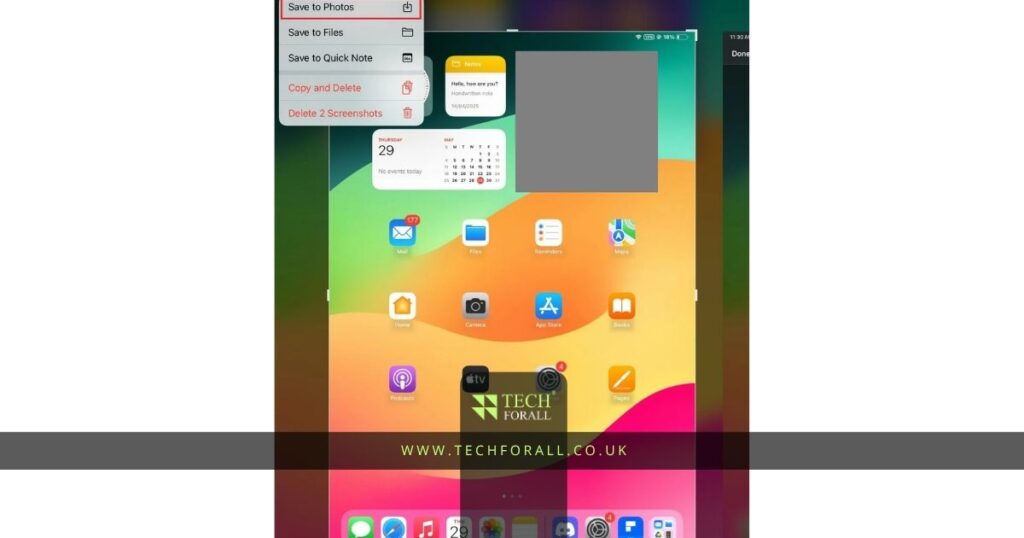
- A small preview appears on the corner
- Tap it to edit
- You can crop draw or add text
- Save it to Photos
All screenshots are stored in the Photos app
Quick Overview of All Methods
| Method | Best For | Ease |
|---|---|---|
| Buttons | Quick screenshots | Very Easy |
| AssistiveTouch | No buttons use | Easy |
| Apple Pencil | Fast gestures | Easy |
| Keyboard | Work setup | Medium |
Tips for Better Screenshot Experience
- Press buttons quickly not slowly
- Clean your screen before capturing
- Use editing tools to highlight important parts
- Organize screenshots in albums
- Delete unnecessary screenshots to save space
These small tips make your screenshots more useful
Common Mistakes to Avoid
- Pressing buttons too long
- Pressing wrong buttons
- Not saving edited screenshot
- Ignoring storage space
- Missing the preview edit option
Always check your screenshot after taking it
Final Thoughts
Now you know how to screenshot on iPad in a simple and easy way. You do not need any special app or setup to take screenshots. The built in features are enough for daily use.
Whether you use buttons AssistiveTouch or Apple Pencil all methods are easy once you try them. After a few times you will be able to take screenshots quickly without thinking.
If someone asks how to take a screenshot on an iPad you can now guide them clearly. Just press the right buttons or use the on screen option and your screenshot will be saved.
That is all you need to get started.
FAQs
How to screenshot on iPad Air?
Press the Top button and Volume Up button together and release quickly.
How to screenshot on iPad Pro?
Press the Top button and Volume Up button at the same time then release.
How do I take a screenshot on my iPad without the button?
Turn on AssistiveTouch and tap the on screen button to take a screenshot.
How to screenshot on iPad 9?
Press the Top button and Home button together then release quickly.
How to screenshot on iPad keyboard?
Press Command Shift 3 on your keyboard to capture the screen.
How to take screenshot on iPad with home button?
Press the Home button and Top button together and release.
How to screenshot on iPad 10?
Press the Top button and Volume Up button together.
How to screenshot on iPad with Pencil?
Swipe up from the bottom corner using Apple Pencil to take a screenshot.