
If you want to hide old orders from your Amazon account then learning how to archive an Amazon order can help.
- What Does Archive an Amazon Order Mean
- How to Archive an Order on Amazon
- Table Showing Where You Can Archive Orders
- How to Archive an Amazon Order on iPhone
- How to Archive Orders on Amazon App
- How to Archive an Amazon Order on Phone
- How to Archive an Amazon Order on Android
- Where Is the Archive Order Button on Amazon
- Can You Still Archive Orders on Amazon
- Archive Order Button Missing Amazon
- How to Find Archived Orders on Amazon
- Helpful Tips for Managing Amazon Orders
- Final Thoughts
- FAQs
- How to archive an Amazon order on iPhone?
- How to archive orders on Amazon app?
- How to archive an Amazon order on phone?
- How to archive an Amazon order on Android?
- Where is the archive order button on Amazon?
- Can you still archive orders on Amazon?
- Why is the archive order button missing on Amazon?
- How do I archive an order on Amazon?
Many people use the archive feature to keep their order history clean. It is useful when you buy gifts personal items or products that you do not want showing in the main order list.
Amazon does not delete the order completely. It simply moves the order into a separate archived section.
A lot of people search for how do I archive an order on Amazon because the option is not always easy to find. The process can also be different on desktop mobile browser and app.
In this guide you will learn how to archive an Amazon order on iPhone Android desktop and phone. You will also learn where the archive order button is and what to do if it is missing.
What Does Archive an Amazon Order Mean
When you archive an order on Amazon it moves the order out of your normal order history. The order is still there and you can still view it later. It is not deleted.
Archived orders stay inside your account in a separate section called Archived Orders. People usually archive orders for these reasons:
- To hide gift purchases
- To keep order history clean
- To separate business and personal purchases
- To hide embarrassing or private items
- To make recent orders easier to find
How to Archive an Order on Amazon
The easiest way to archive an order is by using the Amazon website on a desktop browser.
Follow these steps:
- Sign in to your Amazon account
- Go to Returns and Orders
- Find the order you want to hide
- Click Order Details
- Scroll down and click Archive Order
- Confirm the action
Once you do this the order will move to the Archived Orders section.
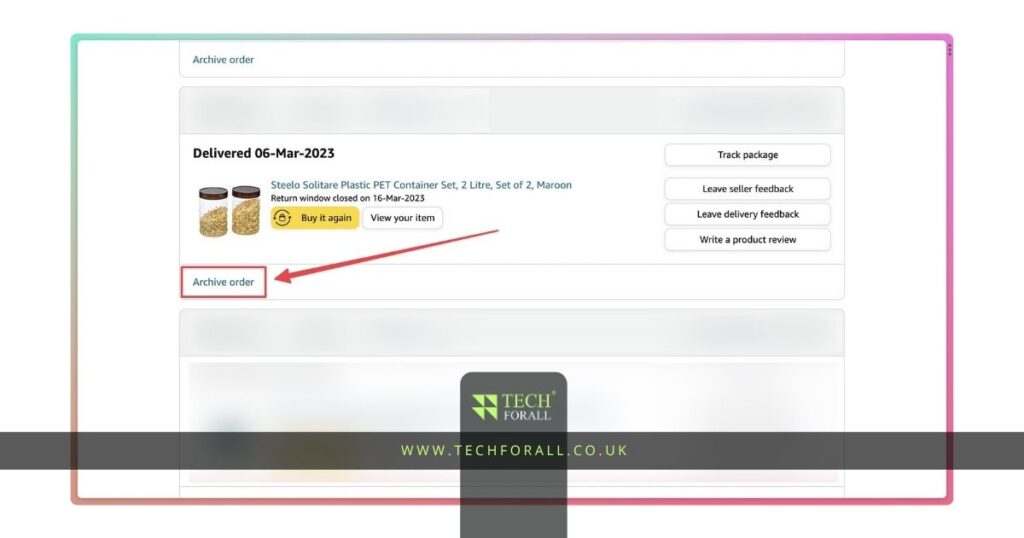
Table Showing Where You Can Archive Orders
| Device | Can You Archive Orders | Best Method |
|---|---|---|
| Desktop computer | Yes | Amazon website |
| iPhone | Yes | Browser version of Amazon |
| Android phone | Yes | Browser version of Amazon |
| Amazon app | Usually no direct option | Open Amazon in browser |
How to Archive an Amazon Order on iPhone
Many people want to know how to archive an Amazon order on iPhone.
The Amazon app on iPhone usually does not show the archive option clearly. The easiest way is to use Safari.
Follow these steps:
- Open Safari on your iPhone
- Visit the Amazon website
- Sign in to your account
- Tap the browser menu and choose Desktop Site if needed
- Go to Returns and Orders
- Open the order you want to hide
- Tap Archive Order
This method works better than the app because the desktop version gives you access to more account options.
How to Archive Orders on Amazon App
A lot of people search for how to archive orders on Amazon app but the truth is that Amazon does not always show this feature inside the mobile app.
In many cases the archive option is missing from the app.
If you do not see the archive option then open Amazon in a mobile browser and switch to desktop view.
That is usually the fastest solution.

You might be interested in: PS3 RomsCombo Complete Guide to Downloads Safety and Legal Facts
How to Archive an Amazon Order on Phone
If you are using any phone whether it is iPhone or Android the process is mostly the same.
You need to:
- Open Amazon in a browser
- Sign in
- Use desktop mode
- Go to your orders
- Select the order
- Tap Archive Order
Using desktop mode on your phone is often easier than using the Amazon app.
How to Archive an Amazon Order on Android
If you are using Android then you can archive an order by using Chrome.
Follow these steps:
- Open Chrome
- Visit Amazon website
- Sign in to your account
- Tap the three dots in Chrome
- Choose Desktop Site
- Open Returns and Orders
- Select the order
- Tap Archive Order
The process is almost the same as on iPhone.
Where Is the Archive Order Button on Amazon
A lot of people cannot find the archive order button.
Usually the button appears inside the order details section.
You need to open a specific order first.
The Archive Order button is usually near the bottom of the page under order information.
If you still do not see it then:
- Switch to desktop mode
- Use a computer instead of the app
- Open Amazon in a browser
- Make sure you are using the full website
Can You Still Archive Orders on Amazon
Yes you can still archive orders on Amazon in 2026.
The feature is still available but it is easier to find on the desktop version of Amazon.
Many people think Amazon removed the feature because it is not always visible in the app.
The archive option still works and you can archive up to 500 orders.
Archive Order Button Missing Amazon
Sometimes people search for archive order button missing Amazon because they cannot find the option.
There are a few reasons why this can happen:
- You are using the mobile app
- You are not using desktop mode
- The order is too recent
- The order type does not support archiving
- Amazon is testing a different layout
If the button is missing then the best solution is to sign in through a computer or use desktop mode on your phone.
How to Find Archived Orders on Amazon
After you archive an order you can still find it later.
Follow these steps:
- Sign in to Amazon
- Go to Accounts and Lists
- Open Your Account
- Find Archived Orders
There you will see all the orders you moved out of your main history.
You can also unarchive an order if needed.

Helpful Tips for Managing Amazon Orders
Here are a few simple tips that can make your Amazon account easier to manage:
- Archive old orders every few months
- Hide gift purchases before someone sees them
- Use separate Amazon accounts for work and personal shopping
- Save screenshots of important orders before archiving
- Use desktop mode if features are missing in the app
These small habits can help keep your account clean and easier to use.
Final Thoughts
Learning how to archive an Amazon order is useful if you want to hide old purchases and keep your order history clean.
The process is simple once you know where to find the option. In most cases using the Amazon website in desktop mode is the easiest method.
Whether you are using iPhone Android or computer you can archive orders in just a few steps.
FAQs
How to archive an Amazon order on iPhone?
Open Amazon in Safari use desktop mode go to your orders and tap Archive Order.
How to archive orders on Amazon app?
The archive option is not always visible in the app. It is easier to use Amazon in a browser.
How to archive an Amazon order on phone?
Open Amazon in your phone browser switch to desktop mode and archive the order from your order history.
How to archive an Amazon order on Android?
Use Chrome on Android open Amazon switch to desktop mode and archive the order.
Where is the archive order button on Amazon?
The archive order button is usually inside the order details page near the bottom.
Can you still archive orders on Amazon?
Yes Amazon still allows users to archive orders in 2026.
Why is the archive order button missing on Amazon?
The button may be missing because you are using the app or not using desktop mode.
How do I archive an order on Amazon?
Go to your order history select the order and tap Archive Order.