Gaming is not cheap anymore. New titles cost a lot and buying every game alone is not always possible. That’s why many players ask: can you game share on PS5?
- What Is PS5 Game Sharing and How It Works
- How to Game Share on PS5
- Step 1: Log Into Your Account
- Step 2: Open Settings
- Step 3: Go to Users and Accounts
- Step 4: Open Sharing Settings
- Step 5: Enable Sharing
- Step 6: Add Your Account to Friend’s PS5
- Step 7: Switch Back to Their Account
- How PS5 Game Sharing Works Between Two Consoles
- Can You Game Share on PS5 Without PS Plus?
- How to Game Share on PS5 With Disc Games
- How to Game Share Between PS5 and PS4
- Common Problems and Fixes (Important)
- 1. Sharing Already Enabled Elsewhere
- 2. Wrong Account Logged In
- 3. Internet Issues
- 4. Too Many Devices
- 5. Game Not Downloaded
- Useful Tips for Better Game Sharing
- Final Thoughts
- FAQs
The simple answer is yes. And once you understand how it works, you can share your full game library with a friend or family member.
This guide explains how to game share on PS5 in a simple way. No confusing terms. Just clear steps real use cases and solutions if something does not work.
What Is PS5 Game Sharing and How It Works
Before jumping into steps, it’s important to understand the idea behind gameshare PS5.
On PS5, game sharing works through a feature called:
Console Sharing and Offline Play
When you enable this, another console can access your purchased games. At the same time, you can also play their games if they enable sharing for you.
So basically:
- You share your games with them
- They share their games with you
- Both users can play without buying twice
This is why many people search for PS5 game sharing 2 consoles, because it works best between two systems.
How to Game Share on PS5
Follow these steps carefully. This is the main method for how to game share PS5.
Step 1: Log Into Your Account
Go to your PS5 and sign in using your PlayStation Network account.
Step 2: Open Settings
From the home screen:
- Click the gear icon (top right)
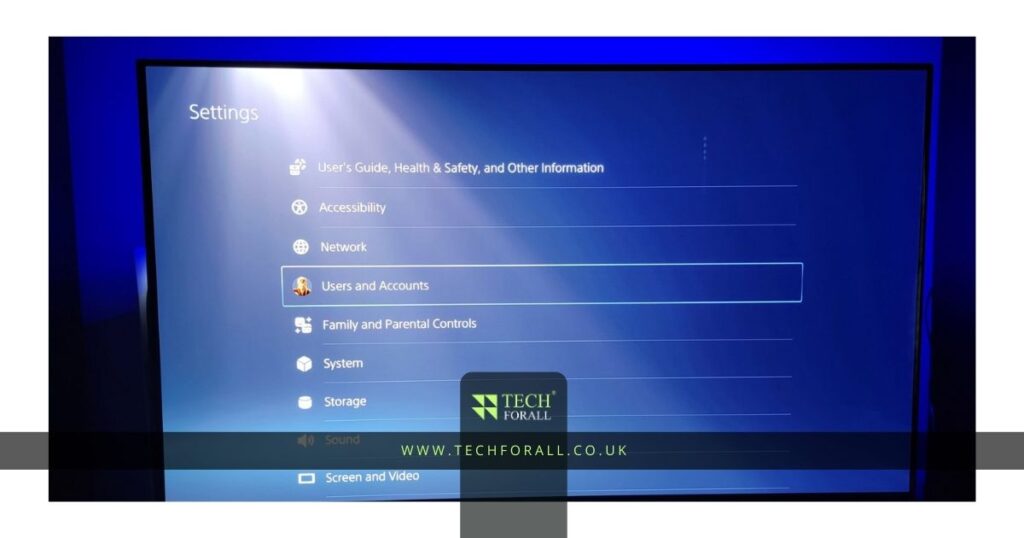
Step 3: Go to Users and Accounts
- Select Users and Accounts
Step 4: Open Sharing Settings
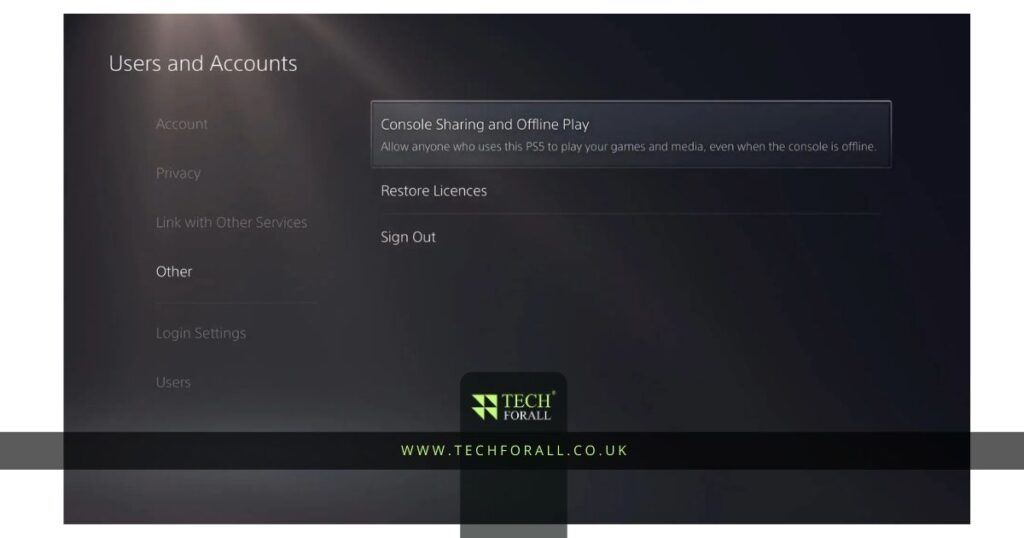
- Scroll to Other
- Click Console Sharing and Offline Play
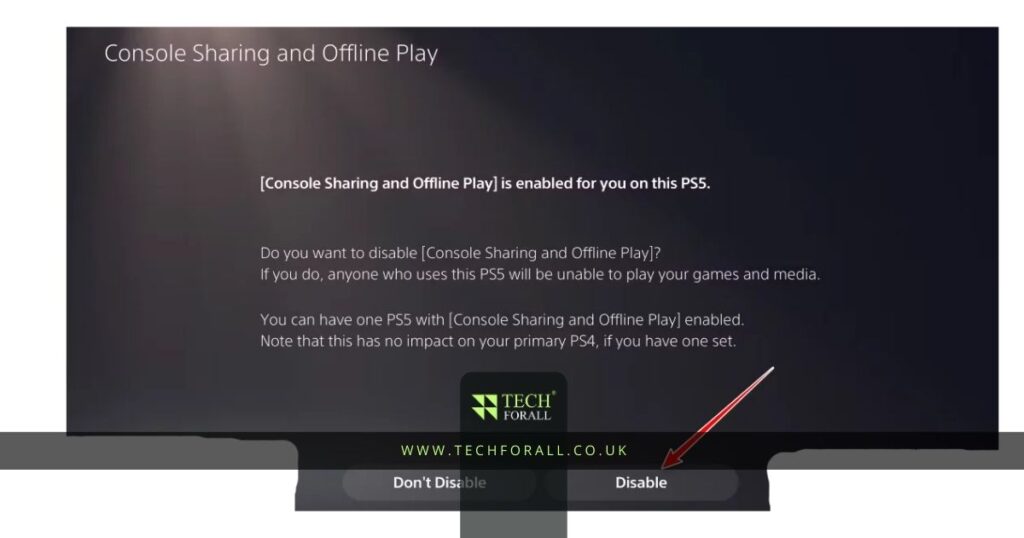
Step 5: Enable Sharing
- Select Enable
Now your account is set as the primary sharing account on that console.
Step 6: Add Your Account to Friend’s PS5
Log into your account on your friend’s PS5 and repeat the same steps.
Step 7: Switch Back to Their Account
Once done:
- Log out of your account
- Let your friend log back into their account
Now they will have access to your games.
This is the exact method most people use when searching how to gameshare on PS5.
How PS5 Game Sharing Works Between Two Consoles
Here is a simple breakdown of PS5 game sharing 2 consoles:
| Feature | Console 1 (Your PS5) | Console 2 (Friend’s PS5) |
|---|---|---|
| Your account logged in | Yes | Yes |
| Console sharing enabled | No | Yes |
| Who plays your games | You | Your friend |
| Internet required | Yes | Not always |
Important point:
You can only share with one person at a time.
This answers another common question:
how many people can you gameshare with on PS5? → Only one.
Can You Game Share on PS5 Without PS Plus?
Yes, you can.
Many people think PS Plus is required, but that is not true.
You can:
- Share purchased games
- Play offline games
- Access full library
However, PS Plus is only needed for:
- Online multiplayer
- Monthly free games
So if you’re searching how to game share on PS5 without PS Plus, the answer is simple:
It works perfectly fine for normal games.
How to Game Share on PS5 With Disc Games
This part confuses many users.
If you are asking how to game share on PS5 with disc, here’s the truth:
- Disc games cannot be shared digitally
- The disc must be inside the console to play
- You cannot transfer disc ownership
So game sharing only works with:
- Digital games from PlayStation Store
How to Game Share Between PS5 and PS4
Yes, it is possible.
If you’re looking for how to game share on PS5 with PS4, here’s how it works:
- Log into the same account on both consoles
- Set PS4 as primary PS4
- Enable sharing on PS5
This allows:
- PS4 user to play PS4 games
- PS5 user to play both PS4 and PS5 versions
But keep in mind:
- Some games may not support cross-generation access
You might be interested in: Fun Games to Play with Friends (Online & In Real Life)
Common Problems and Fixes (Important)
Sometimes users say:
Why is game sharing not working PS5?
Here are common issues and simple fixes:
1. Sharing Already Enabled Elsewhere
- Disable sharing from old console
- Re-enable on new one
2. Wrong Account Logged In
- Make sure the game owner account is added
3. Internet Issues
- Connect to stable internet
- Restore licenses from settings
4. Too Many Devices
- Only one console can have sharing enabled
5. Game Not Downloaded
- Go to library and download manually
Useful Tips for Better Game Sharing
If you want smooth experience, follow these:
- Share only with someone you trust
- Do not share account login publicly
- Keep your password secure
- Enable 2 step verification
- Always log out after setup
These small steps make your gameshare PS5 experience safe.
Final Thoughts
Game sharing on PS5 is one of the best ways to save money and enjoy more games without extra cost. Once you understand the settings, it becomes very simple.
If someone asks how to game share on PS5, the answer is:
- Enable console sharing
- Log into both consoles
- Share with one trusted person
FAQs
How to game share on PS5 on the same console?
Just enable Console Sharing and Offline Play in settings.
How to game share on PS5 YouTube tutorials?
Search your keyword on YouTube, but follow official steps from settings for safety.
Can you game share on PS5?
Yes, you can share your digital games with one other person.
How many people can you gameshare with on PS5?
Only one person at a time.
How to game share on PS5 without PS Plus?
No PS Plus needed. It works for offline and purchased games.
How to game share on PS5 PS Plus games?
If you have PS Plus, your shared user can access your PS Plus games too (while subscription is active).