



If you want to know how to forward calls then the process is simple. Call forwarding sends your calls to another phone number. This is useful if you use two phones have a work number or do not want to miss important calls.
- How to Activate Call Forwarding on iPhone
- How to Put My Phone on Call Forwarding on Android
- Call Forwarding Codes
- Code for Call Forwarding on Different Networks
- When Call Forwarding Can Help
- Important Tips Before You Turn It On
- Final Thoughts
- FAQs
- How to forward calls on iPhone?
- How to forward calls on Android?
- How to forward calls to another number without the phone?
- How to activate call forwarding code?
- How to forward calls to another number Airtel?
- How to forward calls without having the phone Android?
- How to forward calls on iPhone 15?
- How to forward calls on landline?
Many people use call forwarding while traveling during meetings or when their phone has no signal. Some people call it call forwarding and some call it call divert. Both mean the same thing.
You can turn it on from your phone settings or by using a code.
How to Activate Call Forwarding on iPhone
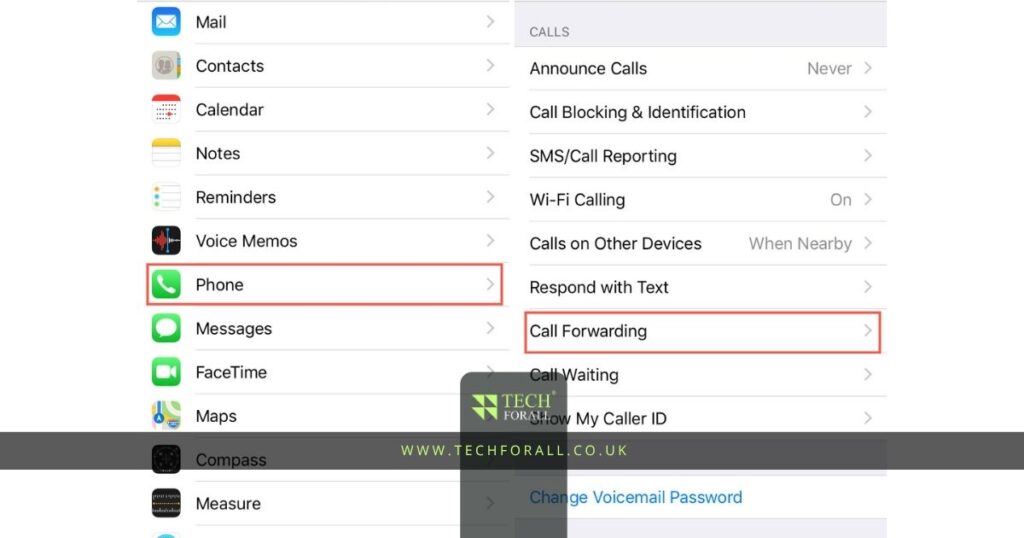
If you have an iPhone then you can turn on call forwarding from the Settings app.
On iPhone you can set up call forwarding in:
- Settings > Apps > Phone > Call Forwarding
After opening Call Forwarding:
- Turn Call Forwarding on
- Tap Forward To
- Enter the phone number where you want calls to go
After this your calls will go to the new number.
If you want to stop call forwarding later then go back to the same section and turn it off.
How to Put My Phone on Call Forwarding on Android
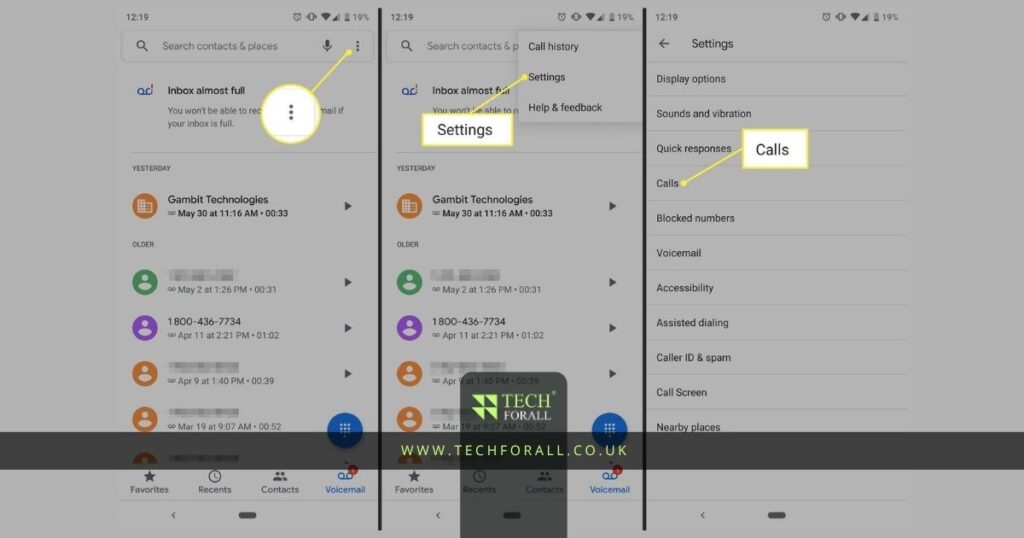
Android phones also have a call forwarding option inside the Phone app.
The menu may look a little different depending on the phone you use.
On Android you can usually find call forwarding in:
- Phone > Menu > Settings > Calls or More Settings > Call Forwarding
After opening Call Forwarding:
- Choose the type of forwarding you want
- Enter the phone number
- Tap Save or Turn On
Most Android phones give you a few forwarding options:
- Forward all calls
- Forward when busy
- Forward when unanswered
- Forward when unreachable
This helps because you can choose when your calls should move to another number.
You might be interested in: Quick Fix: How to Factory Reset MacBook Safely
Call Forwarding Codes
If your phone settings do not show a call forwarding option then you can use a call forwarding code.
These codes are helpful for older phones landlines and some mobile networks.
Common call forwarding and call divert codes include:
| Action | Code |
|---|---|
| Forward all calls | *72 |
| Stop call forwarding | *73 |
| Forward when busy | *67 |
| Forward when no answer | *61 |
| Forward when on another call | *67 |
You first enter the code and then type the number where you want your calls to go.
For example some networks use:
- *21 phone number # for forwarding all calls
- ##21# to stop forwarding
- *67 phone number # for busy calls
- *61 phone number # for unanswered calls
After entering the code press the call button.
Code for Call Forwarding on Different Networks
Different networks may use different call divert codes.
Some common examples are:
- Verizon forward all calls: *72
- Verizon stop forwarding: *73
- T Mobile forward all calls: *21 phone number #
- T Mobile stop forwarding: ##21#
- Forward when busy: *67 phone number #
- Forward when no answer: *61 phone number #
You may need to add the full phone number with area code.
Some networks may charge extra for forwarded calls.
When Call Forwarding Can Help
Call forwarding is useful in many situations.
For example:
- You are traveling
- Your battery is dead
- You use two phones
- You do not want to miss work calls
- Your phone has no signal
- You are busy in meetings
- You changed your number recently
Many people also use call forwarding when moving from one phone to another.
Important Tips Before You Turn It On
Before turning on call forwarding make sure you:
- Enter the correct number
- Test the forwarding after setup
- Check if your network charges extra
- Save important call divert codes
- Turn forwarding off when you no longer need it
You should also call your own number once after setup to make sure everything is working properly.
Final Thoughts
Call forwarding is useful when you want your calls to go to another number. It can help when you are busy traveling working or using another phone. You can turn it on from your phone settings or by using a call forwarding code. Once it is set up your calls will go to the number you choose and you can turn it off whenever you want.
FAQs
How to forward calls on iPhone?
Open Settings then go to Apps Phone and Call Forwarding. Turn it on and enter the number where you want your calls to go.
How to forward calls on Android?
Open the Phone app then go to Menu Settings Calls and Call Forwarding. Enter the number and save the setting.
How to forward calls to another number without the phone?
You can use call forwarding codes from another phone if your network allows it. Some networks also let you manage call forwarding through their app or website.
How to activate call forwarding code?
Dial the call forwarding code provided by your network and then enter the number where you want calls to go.
How to forward calls to another number Airtel?
Airtel users can usually dial **21*phone number# to forward all calls. Replace phone number with the number you want to use.
How to forward calls without having the phone Android?
You may be able to use your mobile network app website or customer support if you do not have the Android phone with you.
How to forward calls on iPhone 15?
On iPhone 15 open Settings then go to Apps Phone and Call Forwarding. Turn it on and enter the new number.
How to forward calls on landline?
Pick up the landline phone and dial the call forwarding code like *72 then enter the number where you want calls to go.


