If you want to know how do you turn AirPlay off on iPhone then the process is simple. AirPlay is useful when you want to share videos music photos or your screen with another device.
Many people use it with Apple TV smart TVs speakers and Mac devices. But sometimes AirPlay stays connected even when you do not want it anymore.
That is why many people search for how do you turn AirPlay off on iPhone. Some people want to stop screen mirroring while others want to disconnect music or videos from another device.
Once you know where the setting is it only takes a few seconds.
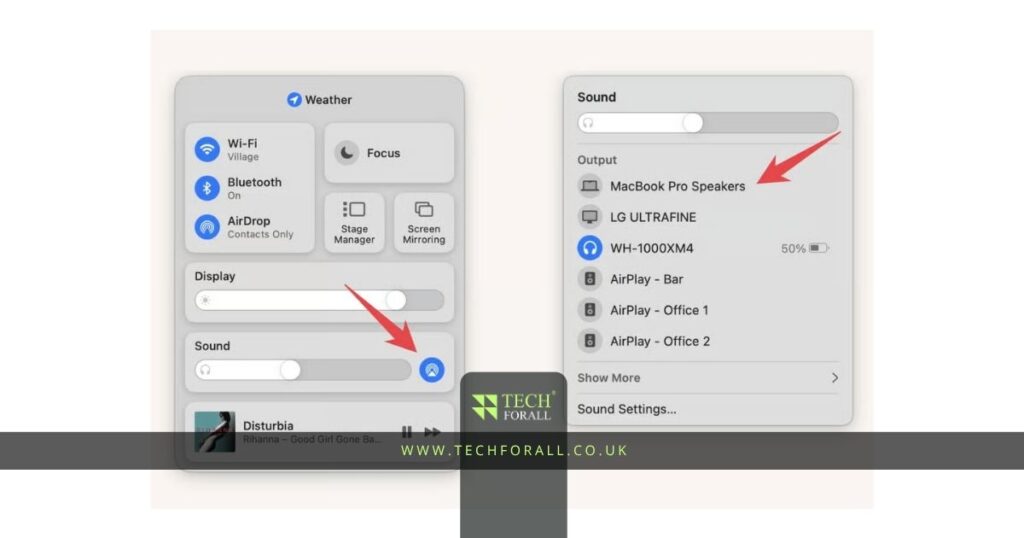
Turn Off AirPlay from Control Center
The fastest way to turn off AirPlay on iPhone is through Control Center.
To do this:
- Swipe down from the top right corner if you have a newer iPhone
- Swipe up from the bottom if you have an older iPhone with a Home button
- Tap the AirPlay icon or Screen Mirroring button
- Select iPhone from the list of devices
This will stop the AirPlay connection.
Turn Off Screen Mirroring
If you are sharing your full iPhone screen then you need to stop Screen Mirroring.
To stop screen sharing:
- Open Control Center
- Tap Screen Mirroring
- Tap Stop Mirroring
After that your iPhone screen will no longer show on the TV or other device.
Turn Off AirPlay for Music and Videos
Sometimes AirPlay is only sending music or video to another device. For example you may be listening to music on a speaker or watching a video on a TV.
To stop AirPlay for music or videos:
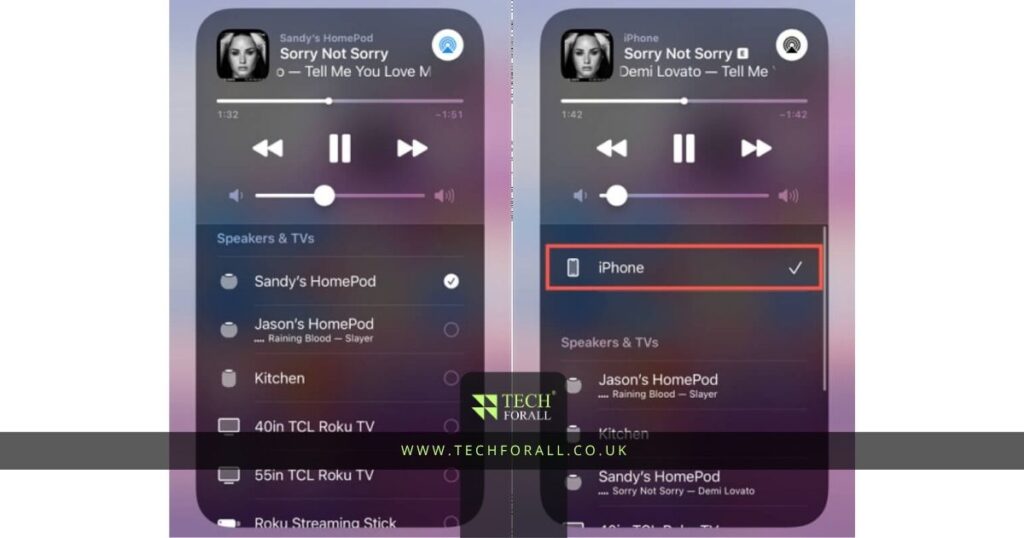
- Open the app you are using like YouTube Spotify Apple Music or Photos
- Tap the AirPlay icon
- Choose iPhone from the list of devices
- Wait a few seconds for the sound or video to move back to your phone
A lot of people search for how to stop AirPlay because they think their sound is not working. In many cases the sound is actually playing on another device through AirPlay.
Turn Off AirPlay from Settings
You can also change AirPlay settings if your iPhone keeps connecting to other devices.
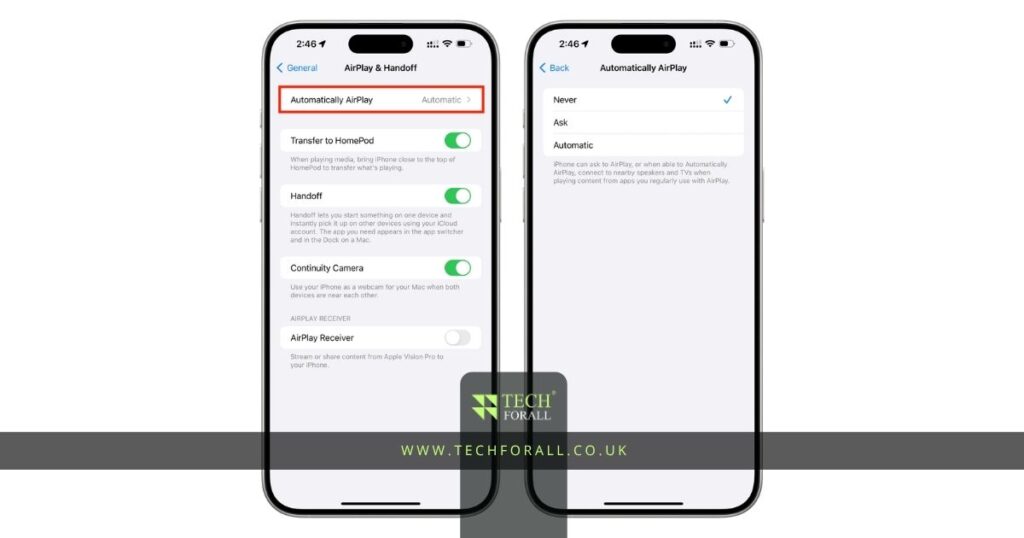
Open Settings then tap General. After that tap AirPlay and Continuity.
Inside this menu you will usually see these options:
- Never
- Ask
- Automatic
If you choose Never then your iPhone will stop connecting to AirPlay devices automatically.
If you choose Ask then your phone will ask before connecting.
Most people choose Ask because it stops the phone from connecting by itself.
You might be interested in: How to Unblock Websites When They Suddenly Stop Working
Stop Automatic AirPlay Connections
Some people get annoyed because their iPhone keeps connecting to the TV or speaker every time they open a video.
This usually happens when Automatic AirPlay is turned on.
To stop this:
- Open Settings
- Tap General
- Tap AirPlay and Continuity
- Tap Automatically AirPlay
- Choose Never or Ask
This can stop your iPhone from connecting on its own.
How to Turn AirPlay Off on Apple TV
If the problem is coming from your Apple TV then you can also turn AirPlay off there.
- Open Settings on Apple TV.
- Tap AirPlay and HomeKit.
- Then turn AirPlay off.
This will stop people from sending videos music or screen mirroring to that Apple TV.
This is helpful if many people use the same WiFi network in your home.
Why AirPlay Keeps Turning On
Many people think something is wrong with their iPhone when AirPlay keeps turning on but most of the time the phone is simply reconnecting to a nearby TV speaker or Apple TV.
If your devices use the same WiFi network then your iPhone may reconnect automatically. Changing the Automatic AirPlay setting from Automatic to Ask or Never usually fixes the problem. You can also restart your iPhone if AirPlay keeps showing even when it is not connected.
Table Showing Different Ways to Turn Off AirPlay
| Method | Best For |
|---|---|
| Control Center | Quickly stopping AirPlay |
| Screen Mirroring button | Turning off screen sharing |
| App AirPlay icon | Stopping music or video casting |
| Settings menu | Stopping automatic connections |
| Apple TV settings | Turning off AirPlay on TV |
Final Thoughts
If your music videos or screen keep connecting to another device then turning AirPlay off can help. You can turn AirPlay off from Control Center app settings or the main settings menu.
If your iPhone keeps connecting by itself then changing the Automatic AirPlay setting is usually the best fix. Once you know where the setting is you can turn it off in a few seconds.
FAQs
How to turn off AirPlay on iPhone 13?
Open Control Center tap the AirPlay or Screen Mirroring icon and select iPhone.
How to turn off AirPlay music on iPhone?
Open the music app tap the AirPlay icon and choose iPhone from the list.
How to turn off AirPlay on TV?
Open the AirPlay settings on your TV and turn the feature off.
How to turn off AirPlay on iPad?
Open Control Center tap Screen Mirroring or AirPlay and select iPad.
How to turn off AirPlay on LG TV?
Open Settings on your LG TV then go to AirPlay and turn it off.
How to turn off AirPlay on iPhone 15?
Open Control Center tap AirPlay or Screen Mirroring and choose iPhone.
How to turn off AirPlay on Samsung TV?
Open Settings on your Samsung TV then go to AirPlay settings and turn it off.
How to turn off AirPlay on iPhone 11?
Swipe up to open Control Center tap AirPlay or Screen Mirroring and select iPhone.